3. Encrypting & Decrypting Text by: saaiqSASLast Updated: 9/2/2026
In this section, we will guide you through the process of encrypting text using PurpleKrypt.
You can either generate a new key or choose an existing one to secure your data.
Setup Key
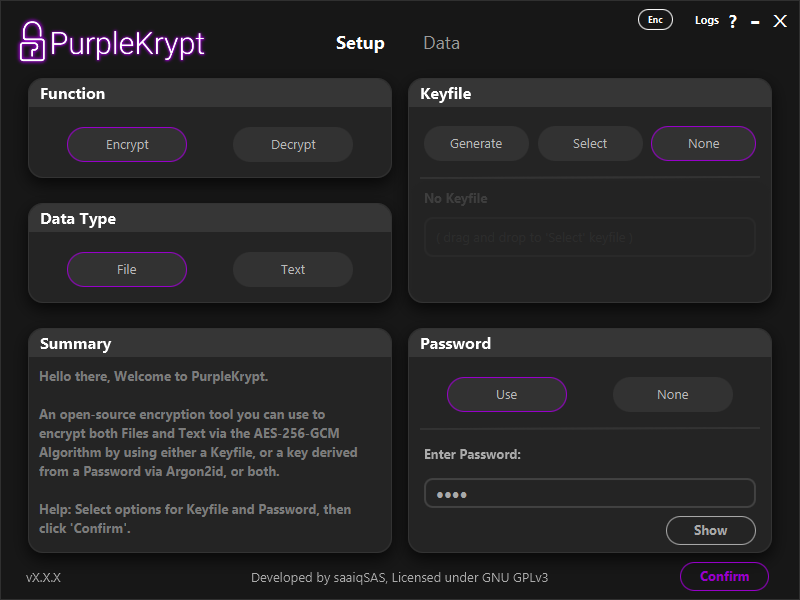
For simplicity, we'll use a password-only setup to process our data, as shown in (Fig.3.1). Once you have configured your key usage, click the
Confirm button. You will then be taken to the Data tab. Note that the details of the key usage confirmation will appear in the
Summary box of the Setup tab. Since we are working with text, make sure to select Text in the Data Type box.
Fig.3.1Encrypting Text
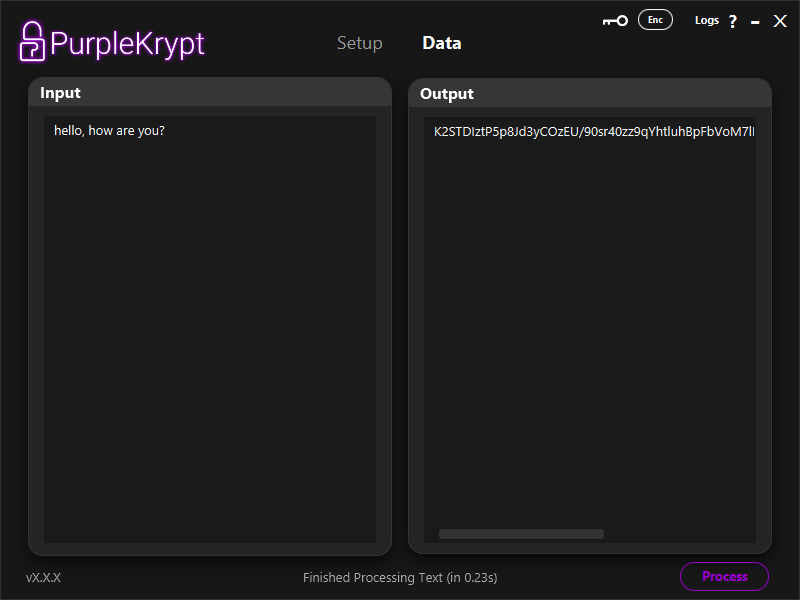
Once you are in the Data tab, enter the text you wish to encrypt in the Input section, then click the Process button to begin encryption.
When the process completes, the encrypted text will appear in the Output section (Fig3.3). Ensure that the Encrypt
option is selected in the Setup tab. You can also verify this directly from the Data tab using the icons at the top left:
the Enc icon indicates Encrypt, while the Dec icon indicates Decrypt.
Fig.3.3Decrypting Text
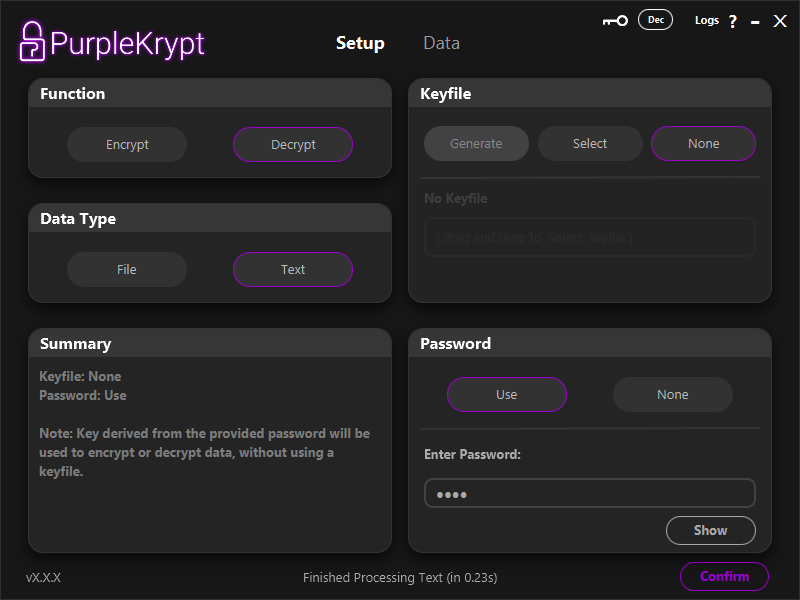
To decrypt text, use the same key configuration that was used to encrypt the data. If you generated a keyfile, select that keyfile and provide the password
if the keyfile is encrypted. For this tutorial, we'll simply go to the Setup tab and change the function type to Decrypt, as shown in
(Fig.3.5).
Fig.3.5
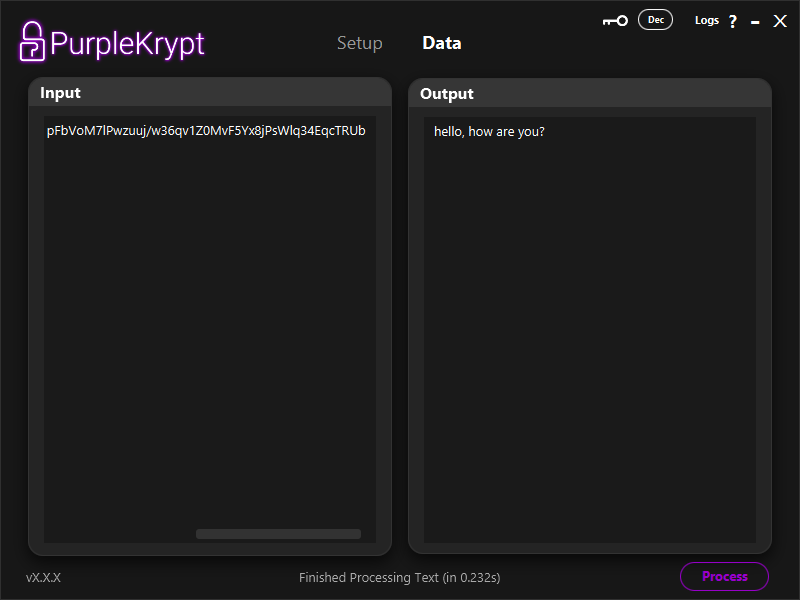
After that, return to the Data tab, paste the encrypted text into the Input section, and click the Process button.
Once the decryption is complete, the decrypted text will be displayed in the Output section (Fig.3.7).
Fig.3.7